Set Up Your Mobile Apps
Your account is ready. Install the official Synology apps and connect them in a couple of minutes so your photos, videos, and files back up automatically.
⬇️ 1. Download the apps
Install the official apps only — never a third-party copy.
🔌 2. Connect the app to the NAS
Do this once in Synology Photos (repeat the same steps in Synology Drive if you installed it).
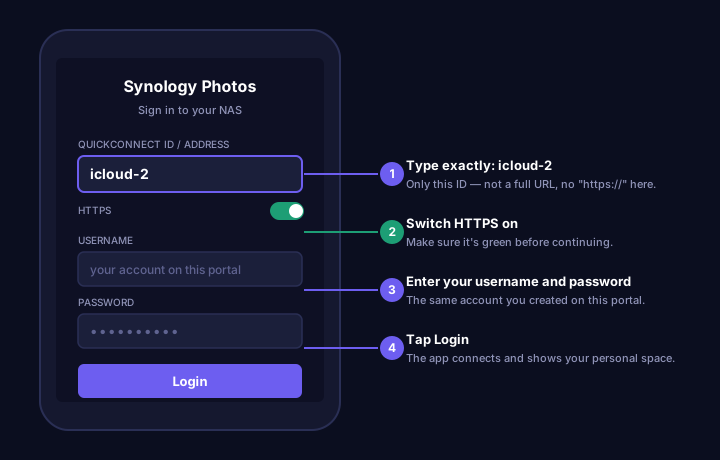
Open the app and tap "Sign In"
On first launch, choose to sign in to an existing Synology NAS (not "Create new account").
Enter the QuickConnect ID
In the server/address field, type exactly: icloud-2 — just that, nothing else. Do not type a full URL or add "https://" here.
Select HTTPS
Make sure the connection type is set to HTTPS (not HTTP) before continuing.
Enter your username and password
Use the same account you just created on this portal.
Tap "Login"
The app connects and shows your personal space.
💻 Logging in from a computer instead?
On a PC or Mac you don't use the QuickConnect ID alone — open one of these two addresses in your browser instead: https://icloud-2.quickconnect.to or https://nas.serviceprofessionalmanagement.com:5001. Both reach the same NAS; use whichever loads faster for you.
☁️ 3. Turn on full automatic backup
Right after logging in to Synology Photos, set it up so nothing is left out:
Open "More"
Tap the More menu (≡ or "...") at the bottom or top of the app.
Go to "Photo Backup"
Tap Photo Backup and turn it on.
Enable full backup
Make sure backup covers your entire photo/video library, not just a selected album.
Turn OFF "Wi-Fi only"
So backup keeps working on mobile data too, not only when connected to Wi-Fi.
Turn OFF "Photos only"
So your videos are backed up as well, not just photos.
Turn OFF "Only when charging"
So backup isn't delayed until your phone is plugged in.
With these four settings, every new photo and video backs up automatically — on Wi-Fi or mobile data, charging or not.